How it works
From one photo to 50 years, in about a minute.
Five steps after a one-tap sign-up with Google or Apple. Your photo is only used to check the light and find the bare skin, then to make your preview.
- About a minute
From photo to five ageing stages.
- One-tap sign-up
With Google or Apple – free after that.
- Free in beta
Every feature, no card needed.
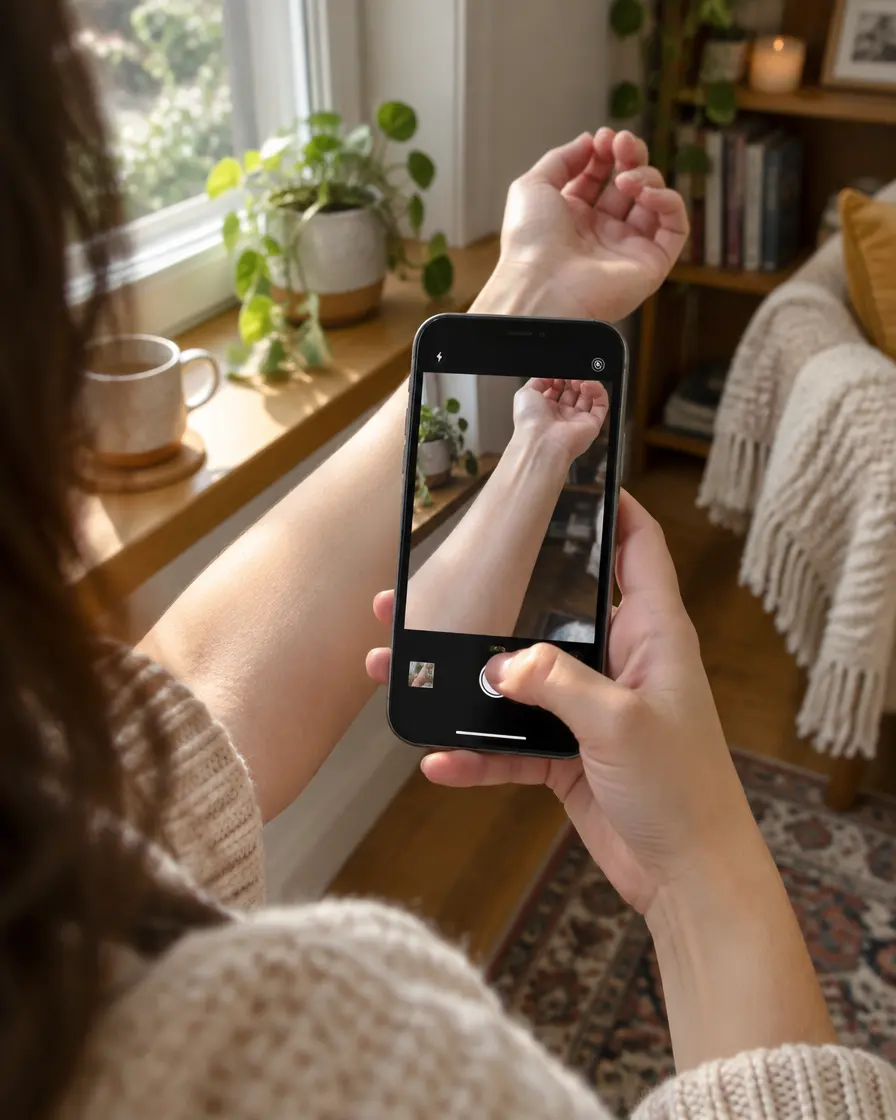
01Take a photo of the spot
Open InkAge and take a photo of the place where the tattoo would go — forearm, calf, shoulder blade, anywhere. You can also pick one from your gallery.
The app checks the light and focus straight away and finds the bare skin in the picture, so the design is only ever placed on skin.
02Add any design
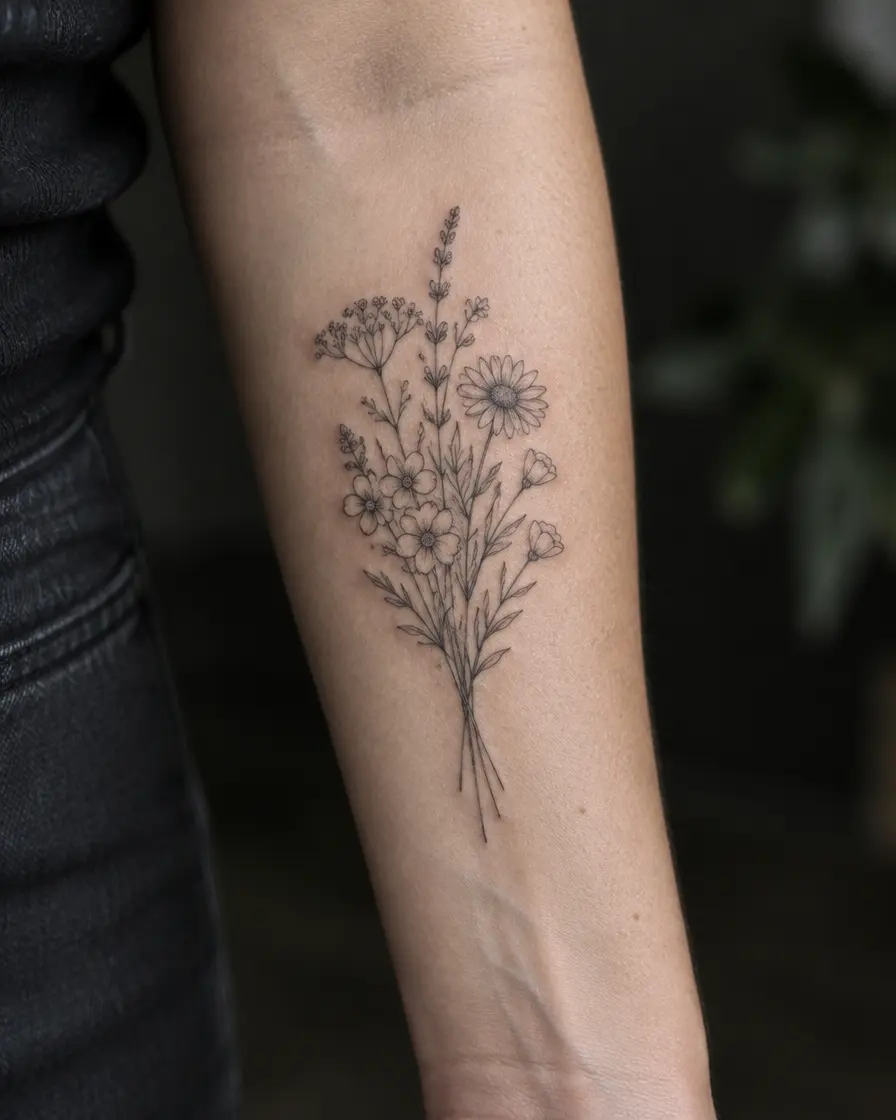
Upload a sketch, a screenshot from Pinterest or Instagram, a photo of a design on paper — or a photo of a tattoo on someone else’s body. You can also paste a link or pick from the design library.
If the picture contains more than one design, InkAge frames each one and asks which you want. Only the framed part is used — no person, no clothes, no background.
03Place and size it
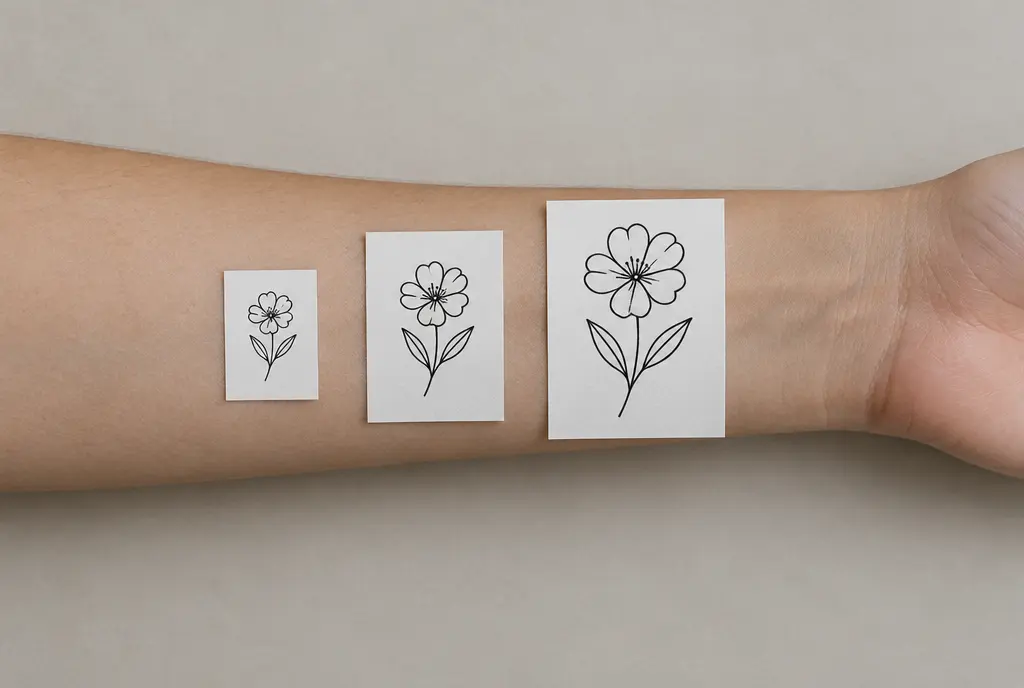
Drag, pinch and rotate the design into place. The editor shows the size in centimetres, with quick buttons for 3, 5, 8, 12 and 20 cm.
Choose the body area on the body map. Friction and sun differ a lot between, say, a finger and an upper back, and that changes how the design ages.
04Watch it age
In about a minute you get realistic images on your own photo: fresh, healed after a year, and at 10, 30 and 50 years.
Alongside them comes a longevity score from 0 to 100, with the reasons that raised or lowered it — line weight, detail at this size, colours, placement and sun.
If the design is fragile, “Make it last” redraws it the way an experienced artist might — bolder lines, fewer tiny details — so you can compare both versions side by side.

05Decide together
Share a link where friends vote “get it”, “change it” or “which one?”, make a short video for TikTok, Reels or Shorts, or download a one-page PDF with the design, size, placement and previews to take to your artist.

06Add InkAge to your home screen
InkAge works in the browser and can be installed like an app, without an app store.
iPhone and iPad
- Open inkage.app in Safari.
- Tap the Share button (the square with an arrow).
- Choose “Add to Home Screen”, then “Add”.
Android and desktop
- Open the browser menu (⋮).
- Choose “Install app” or “Add to Home screen”.
07What it is — and what it isn’t
Every preview is an AI estimate based on how ink, skin and sun usually behave over time. It is a planning tool for comparing designs, sizes and placements, not a measurement of your skin or a promise of a result.
Your artist’s experience still matters most. InkAge helps you arrive with a clearer idea.
See it on your skin before it’s permanent.
Free after a one-tap sign-up with Google or Apple.